

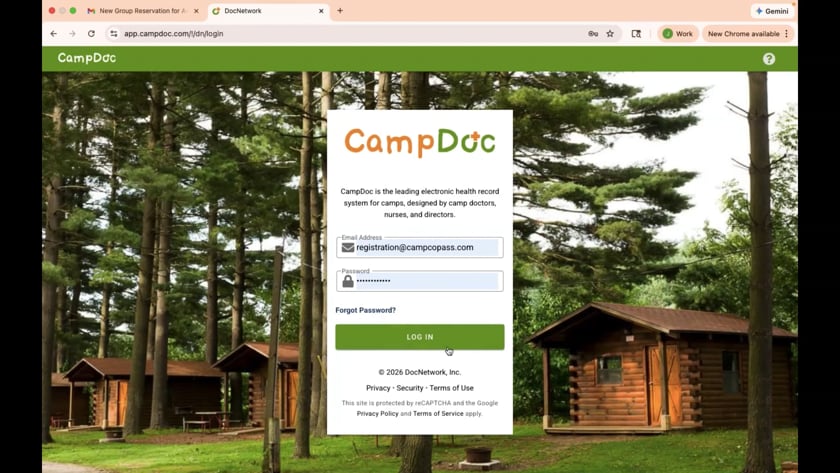
Group Leader: First Time Log On
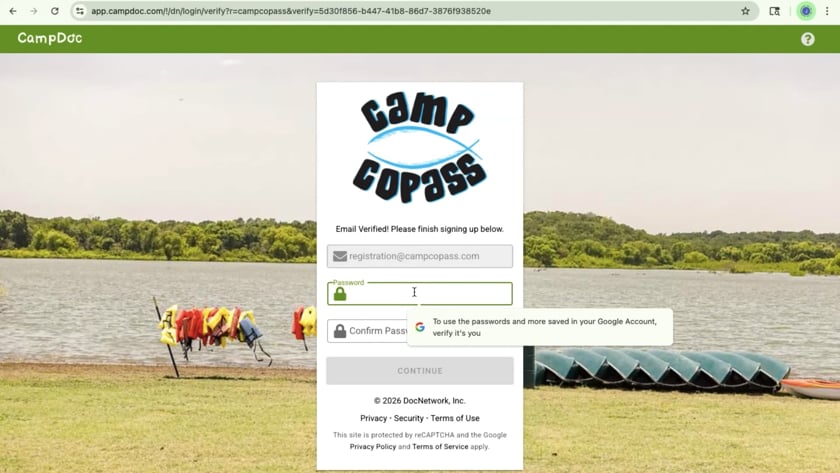
Group Leader: How to generate custom links for your campers to fill out their paperwork online
Group Leader: One Minute Guide for the Group Leader Page
CampDoc Support
Need help?
Email support@docnetwork.org or call (734) 619-8300 ext 2.
- Go to app.campdoc.com/register/campcopass
- Log in to your existing account or create one, entering all of your personal information
- Click on “Registration”
- Click on “new session”
- Look for the date you’re attending
- Choose both of your campers-types with that date. (Adult and Camper)
- Click on continue
- Type your Group/Church Name: Remember, if you have a generic church name you’ll need to include your city. Ex: FBC Long Island
- Group size (estimate) The total should be the same number you paid for when you paid your deposit. (Ex: 3 Adult Counselors, 1 Group Leader, 2 Jr. Counselors, 18 Campers = you paid for 24 total in your deposit)
- Click on continue then register
- Click on close and log out of Campdoc completely
- Check your email for each of the links you need to share with your group.
- In the body of the email, you will see in bold what type camper should use the link below. Ex: Adult or Camper
- Create an email to that type participant. Using the example of Camper, you would send the link to all the parents that are going to be filling out paperwork for their camper. Send the email.
- Repeat the step for each one of your types of campers.
- When you login as a group leader, you’ll be able to see everyone who has completed this ste
FAQs
Your contact person on the group’s contract will send out the links to register.
If he would like to make someone else a “provider” with access to the campers’ health and registration information, then he can contact our office, and our staff will create your profiles as providers with that access. In this scenario you would not create your own profile, you’d wait for our staff to do it. Campers and other adults attending, however, would use the generic links that were sent to the group leader.
- Shot records, if you have them.
- Insurance info, if you have it. If you do not, then you simply do not add them.
- For adults they will have to provide their background check (most churches have those on file). If they do not have a background check, they will have to fill out a background check with the provided link which will ask for their social security number.
If someone doesn’t have a background check they would have to pay $10 to complete one. It’s assumed that your church has already done this step.
It’s required by the Texas Health Department: Youth Camp Laws. Additionally, CampDoc is the way Camp Copass receives liability release forms for camp attendance.
Yes, per health department requirements, groups of minors staying 3 nights, or more are required to have someone responsible for securing and dispensing medication for your group. The data collected in CampDoc will be available to your first aid certified group leader/health officer/nurse.
Every camper staying on the camp overnight will submit it.
You are welcome to use current background checks on file and current child protection training certificates. The adults registering will need to upload their certificate and background checks.
Adult background checks and Child Protection Training certificates should be submitted two weeks in advance of arrival. Camper forms may be submitted as late as arrival day.
The leader is set up to be notified of any activity within CampDoc. He will be able to see registration and incomplete paperwork. The system will automatically notify adults or parents of the missing documents.
We understand that oftentimes groups have late registrations; however, all campers will have to complete all forms. This is a state requirement for staying overnight on the campus. Campers are welcome to complete forms the day of arrival, if necessary. Adult background checks and Child Protection Training certificates should be submitted two weeks in advance of arrival.
If you have additional questions, please let our staff know. We’d be happy to assist you.
We look forward to having your group here at Camp Copass.